imdone Kanban docs
Settings
Default Settings
Click on Default Settings from the menu to select the application for editing files and set your default project settings.
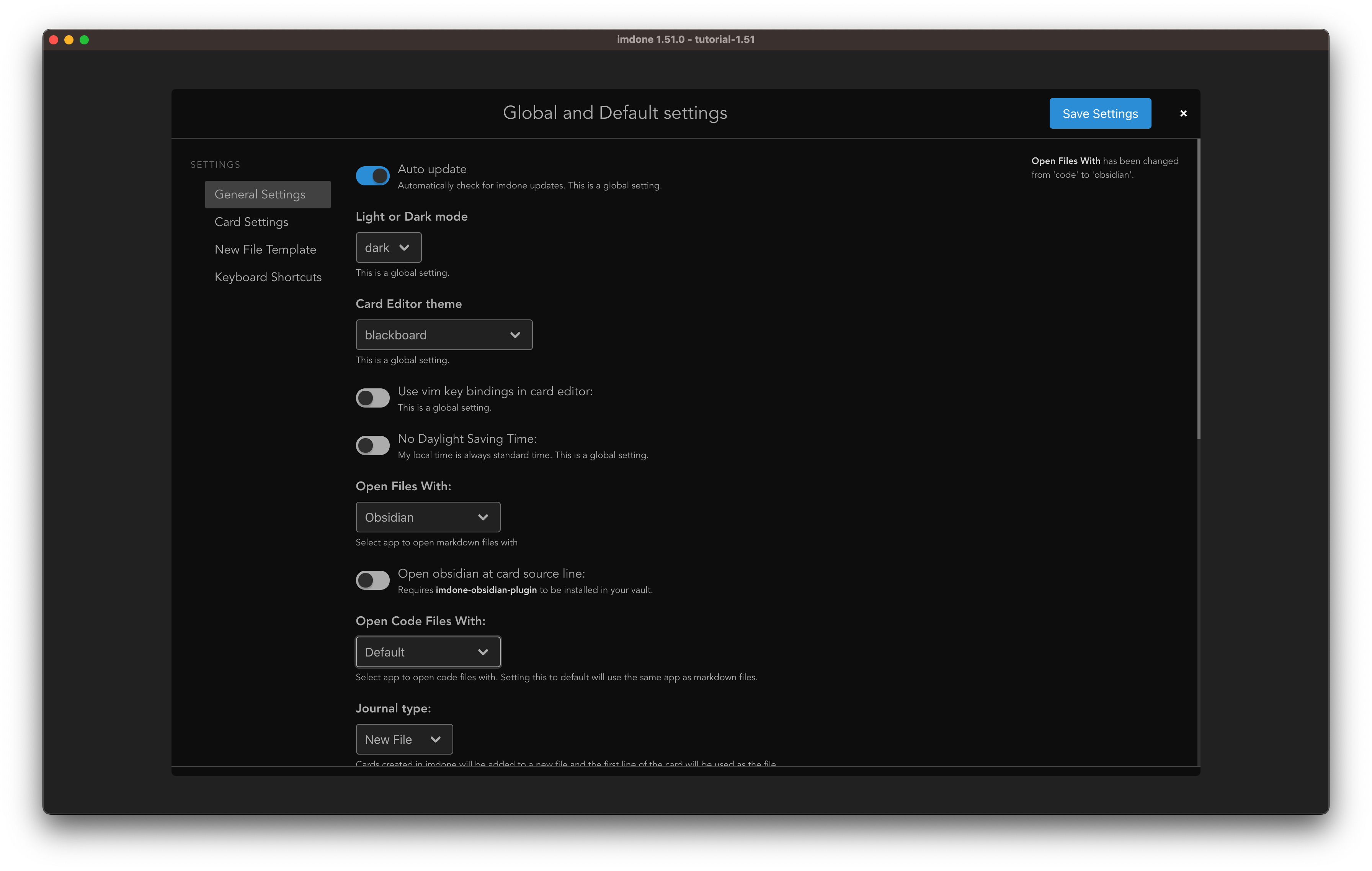
Open Files With
- System Default: Open files to the first line in your system default editor
- VS Code: Open files to the source of the card in Visual Studio Code
- Obsidian: Open files to the source of the card in Obsidian
- Open obsidian at card source line: Open to card source line in obsidian (requires imdone-obsidian-plugin)
- Atom: Open files to the source of a card in Atom
- URL: Open files using a URL
- URL: The url to open the file for editing
- All default props, props, and computed props can be used for string interpolation
- Custom: Open files in the editor of your choice
- Custom open file command: Open files using a command in your system PATH.
- e.g.
sublime "${path}":${line} - e.g.
open "obsidian://open?vault=${projectPath.split('/').pop()}&file=${relPath.split('.').shift()}"to open in Obsidian vault on Mac. - All default props, props, and computed props can be used for string interpolation
- e.g.
- Custom open file command: Open files using a command in your system PATH.
Light or Dark mode
Select between Light or Dark mode
Card Editor theme
Select a card editor theme
Use vim key bindings in card editor
Edit cards using Vim key bindings
Keyboard shortcuts
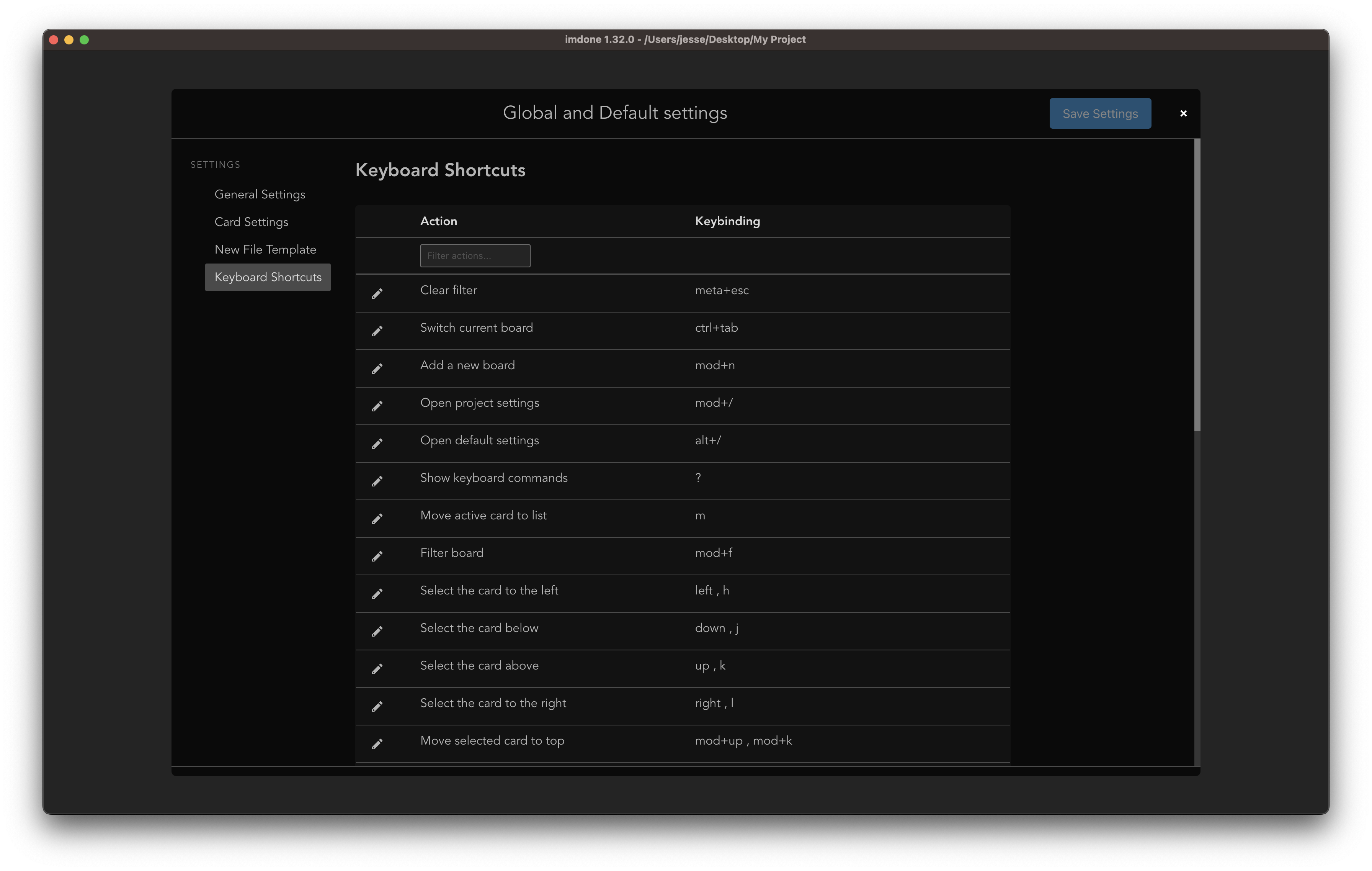
Click on Keyboard Shortcuts to change the keyboard bindings in imdone.
Project Settings
Click on <project> Project Settings from the menu to access your project settings.
General Settings
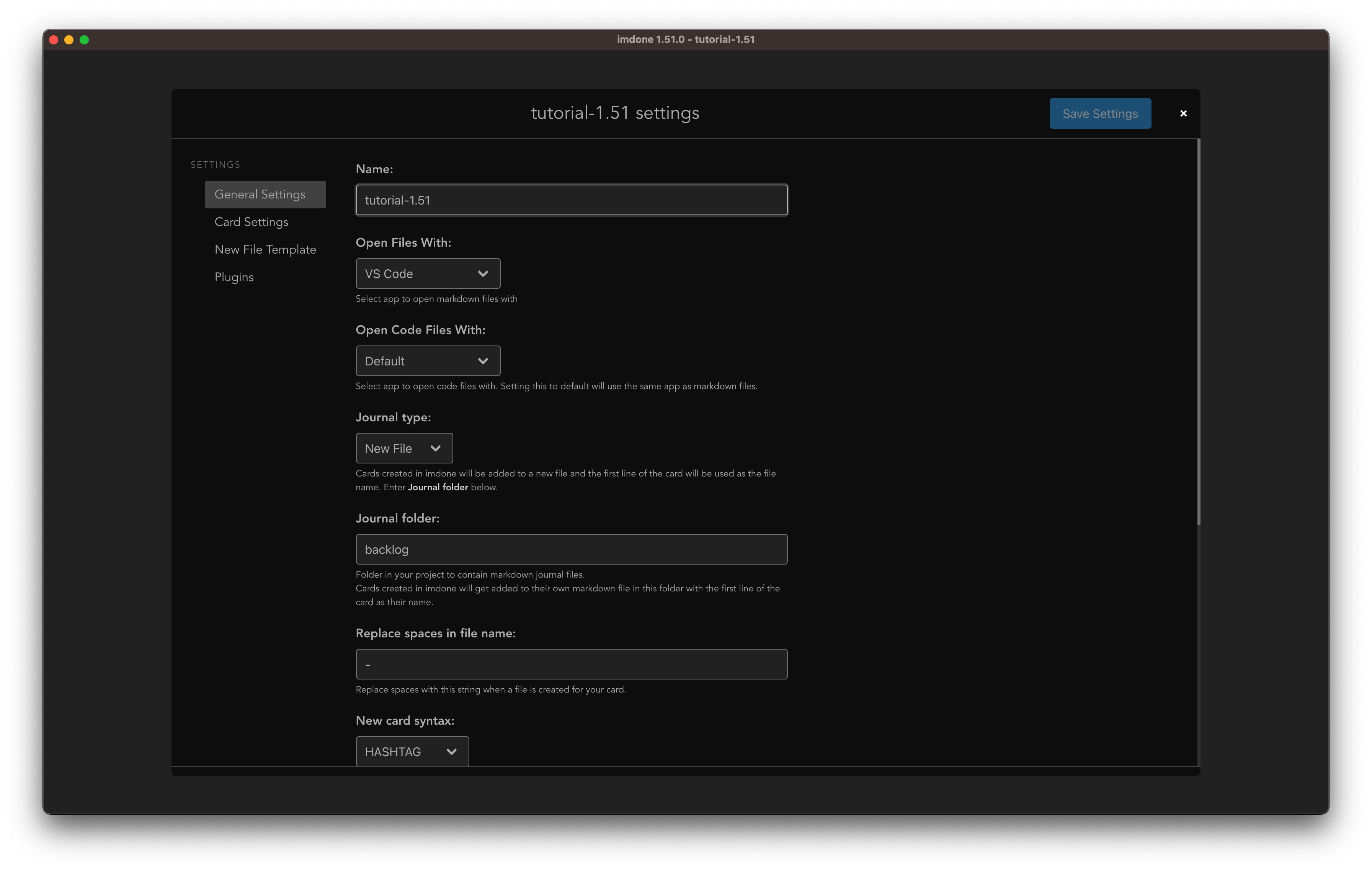
Open Files With
- Default: Open files to the first line in your system default editor
- VS Code: Open files to the source of the card in Visual Studio Code
- Obsidian: Open files to the source of the card in Obsidian
- Open obsidian at card source line: Open to card source line in obsidian (requires Open cards in imdone obsidian plugin)
- Atom: Open files to the source of a card in Atom
- URL: Open files using a URL
- URL: The url to open the file for editing
- All default props, props, and computed props can be used for string interpolation
- Custom: Open files in the editor of your choice
- Custom open file command: Open files using a command in your system PATH.
- e.g.
sublime "${path}":${line} - e.g.
open "obsidian://open?vault=${projectPath.split('/').pop()}&file=${relPath.split('.').shift()}"to open in Obsidian vault on Mac. - All default props, props, and computed props can be used for string interpolation
- e.g.
- Custom open file command: Open files using a command in your system PATH.
Open Code Files With
- Same as Open Files With but for code files.
- Default: Open code files in the editor selected in Open Files With.
Journal Type
- Folder
- Cards created in imdone will be appended to a new file each day.
- Journal Folder
- A folder in your project to contain markdown journal files.
- Journal file prefix
- The prefix to use before the date in journal files created by imdone. (e.g. imdone-)
- Journal file suffix
- The suffix to use after the date in journal files created by imdone. (e.g. -imdone)
- Single File
- Cards created in imdone will be appended to a single file.
- Single Journal File
- A file to use as your markdown journal.
- Create this file in your project folder before adding it to settings.
- New File
- Cards created in imdone will be appended to a new markdown file in this folder with the first line of the card as their name.
- Journal Folder
- A folder in your project to contain markdown journal files.
- Replace spaces in file name
- Replace spaces with this string when a file is created for your card.
New Card syntax
- Syntax used in your journal file when new cards are added
- MARKDOWN
[This is MARKDOWN syntax](#TODO:20) - HASHTAG
#TODO:10 This is HASHTAG syntax
- MARKDOWN
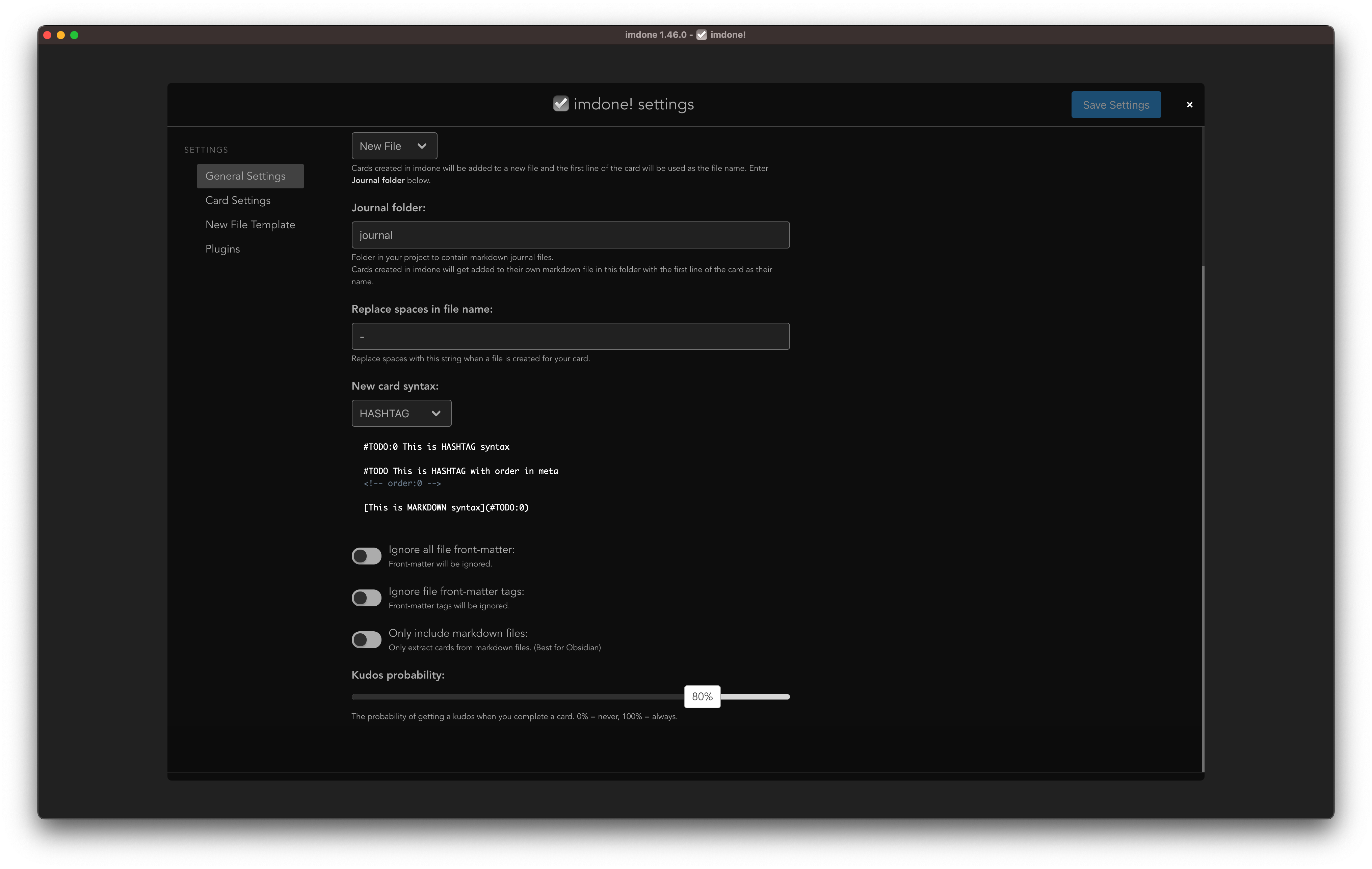
Ignore all file front-matter
Front-matter in files will be ignored
Ignore file front-matter tags
Front-matter tags will be ignored
Only include markdown files
Only extract cards from markdown files. If you’re using imdone with Obsidian, you may want to turn this on.
Kudos probability
The probability of getting a kudos when completing a card. A value of 0% will never give kudos. A value of 100% will always give kudos.
Card Settings
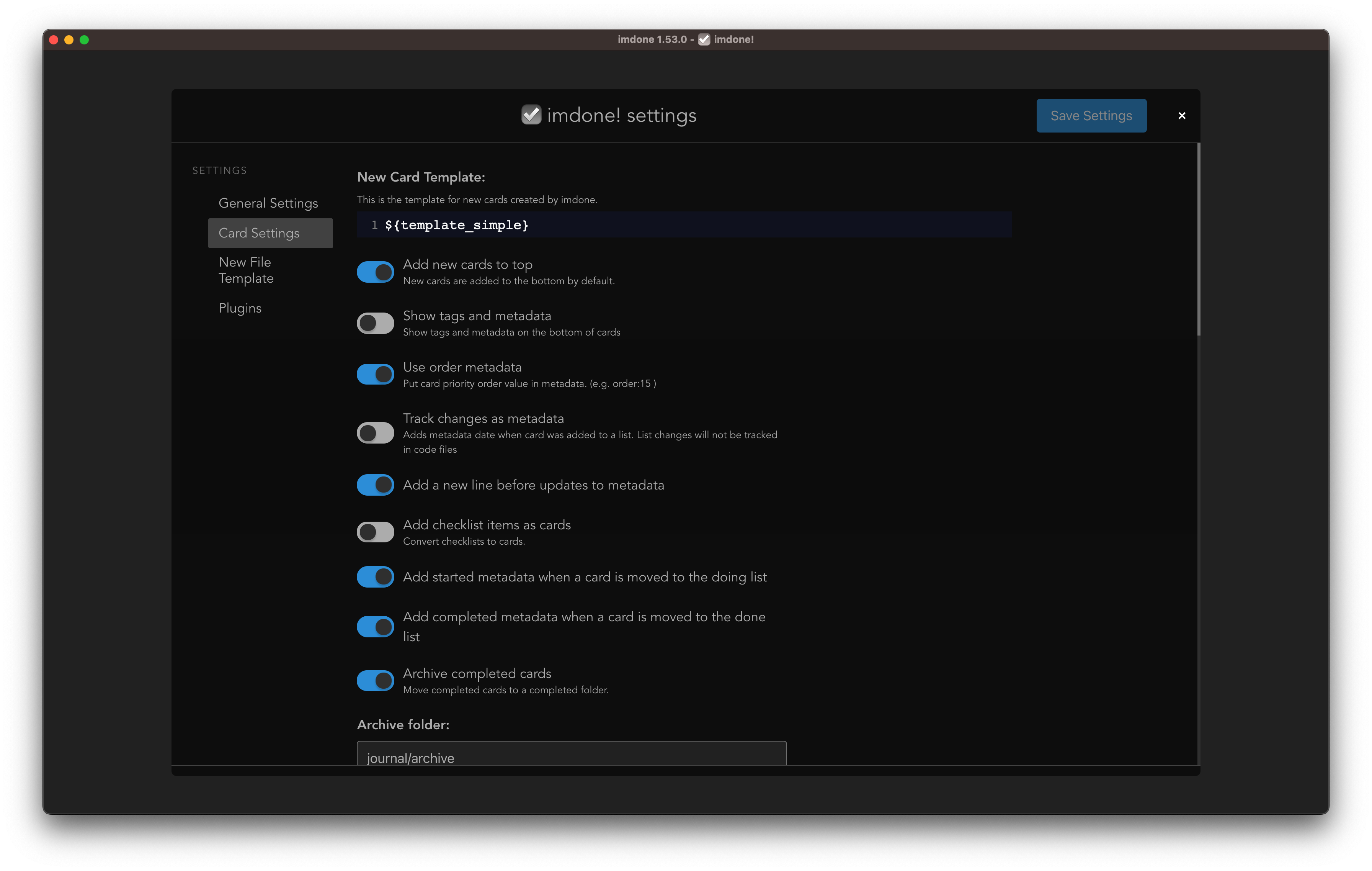
New Card Template
The template for new cards created in imdone. Use card level props and computed properties with string interpolation. If you use ${<prop>} syntax, all props and computed props will be permanently interpolated in the card when it’s appended to the file.
If you want a property to be displayed dynamically in your card then use {{<prop>}} syntax.
example
:100: Days of code, Day ${daysIn}: ${today}
:rocket: **Progress:**  your progress here
:thought_balloon: **Thoughts:**  your thoughts here
:link: **Links to work:**  your links here
#100DaysOfCode
Show tags and metadata
Show tags and metadata in cards
Add new cards to top
Do you want new cards to appear on the top, when adding from imdone?
Use order metadata
When this is turned on, order is read and stored in task metadata.
#TODO This is a task with order metadata
<!-- order:10 -->
Track changes as metadata
A new piece of metadata will be added every time a list changes while imdone is running. e.g. TODO:2021-03-02T14:41:43.322Z
Add a newline before track changes metadata
A new line will be added after existing metadata in the card when tracking metadata is added.
Add checklist items as cards
Turning this on will convert all top level checklist items into cards.
When a card is found on a line that starts with - [ ] or - [x], imdone will keep the item in sync by changing the token to TODO when the checklist item starts with - [ ] and DONE when the checklist item starts with - [x]. Imdone will also update the checklist prefix for you when the card is moved in and out of DONE.
Add started metadata
When a card is moved to the doing list, started:<date time stamp> will be added.
Add completed metadata
When a card is moved to the done list completed:<date time stamp> will be added. Completed metadata is removed when a card is moved out of the Done list
Archive completed cards
When a card is moved to the done list, it will be archived by deleting it from the original file and adding it to it’s own markdown file in the archive folder.
Archive folder
The folder to archive completed cards.
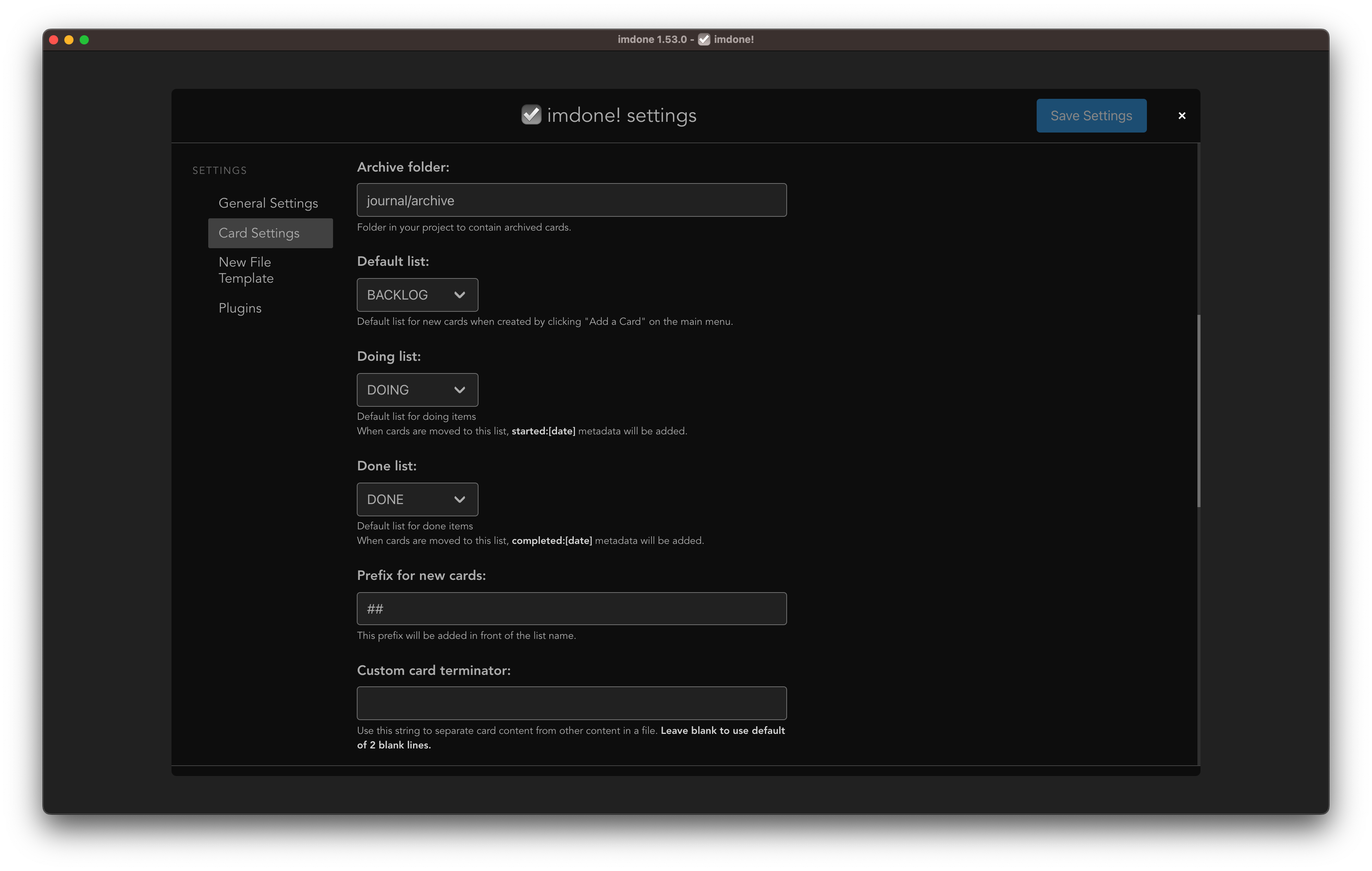
Default list
Default list for new cards when created by clicking “Add a Card” on the main menu.
If “Add checklist items as cards” is on new checklist items found in your project folder will be added to this list. Cards will also be moved to this list if you uncheck a checklist item card in the source file.
Doing list
When cards are moved to this list, started metadata will be added.
- Defaults to the second to last real list on your board.
Done list
- When cards are moved to this list, completed metadata will be added.
- Defaults to the last real list on your board.
- If “Add checklist items as cards” is on, checked checklist items (e.g.
- [x]) will reside in this list.
Prefix for new cards
This prefix will be added in front of the list name in your source files.
- A value of
#will write some thing like# [Finish this settings doc](#DOING:)in your journal file if you use the MARKDOWN New card syntax. - A value of
- [ ]will write a checklist item like- [ ] [Finish this settings doc](#DOING:)
As a convenience, the date variable is available to interpolate this string with javascript.
Prefix for jrnl.sh
[${date.getFullYear()}-${(date.getMonth()+1).toString().padStart(2,'0')}-${date.getDate().toString().padStart(2,'0')} ${date.getHours().toString().padStart(2,'0')}:${date.getMinutes().toString().padStart(2,'0')}]
Custom card terminator
A custom string or number to use as a card terminator. This string will be used to separate cards from other content in your markdown files.
- Enter a string like
---,***, or<!--/card-->to use as a separator between cards - Enter a whole number (e.g.
2,3,4) to specify the number of blank lines to use as a card terminator - Leave blank to use the default of 2 blank lines
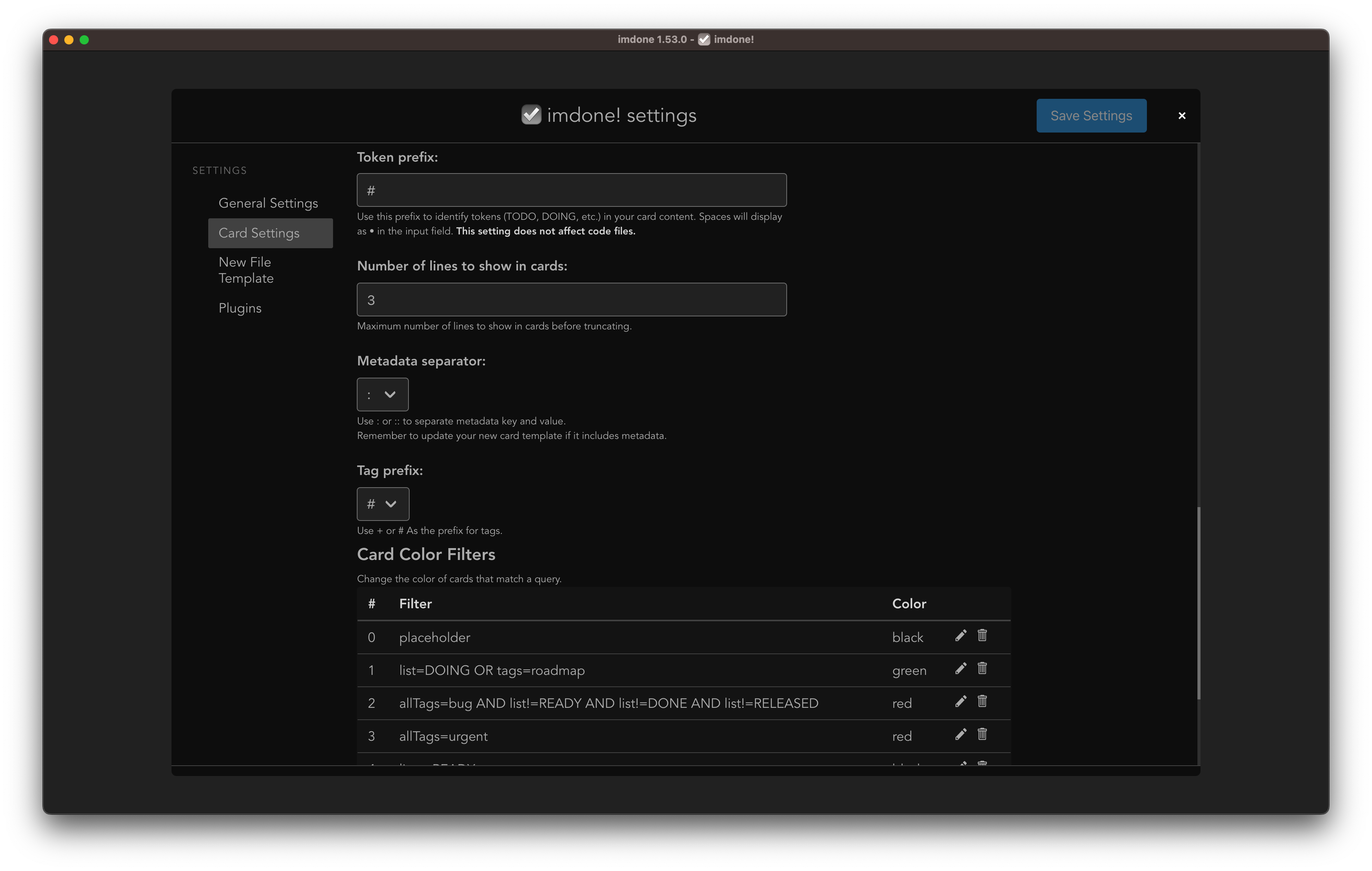
Token Prefix
The prefix to use for tokens in your markdown files. This is used to identify cards in your markdown files. The default is #, so a card in your markdown file would look like #TODO Finish this settings doc.
Number of lines to show in cards
Maximum number of lines to show in cards before truncating.
Metadata separator
Choose either : or :: as your metadata separator.
Tag prefix
Choose either + or # as your tag prefix.
Card Color Filters
Change the color of cards based on a simple query.
Click the add button to create a new card color filter.
File Template
To use a template for files created by imdone.