imdone Kanban docs
Lists
Imdone will look for comments with the following tokens by default, “TODO”, “DOING”, “DONE”, “PLANNING”, “FIXME”, “HACK”, “CHANGED”, “XXX”, “IDEA”, “NOTE” and “REVIEW”.
To add another token, click Add another list.
Reordering lists
To reorder your lists click on the list heading and drag it to a new position.
Hiding and ignoring lists
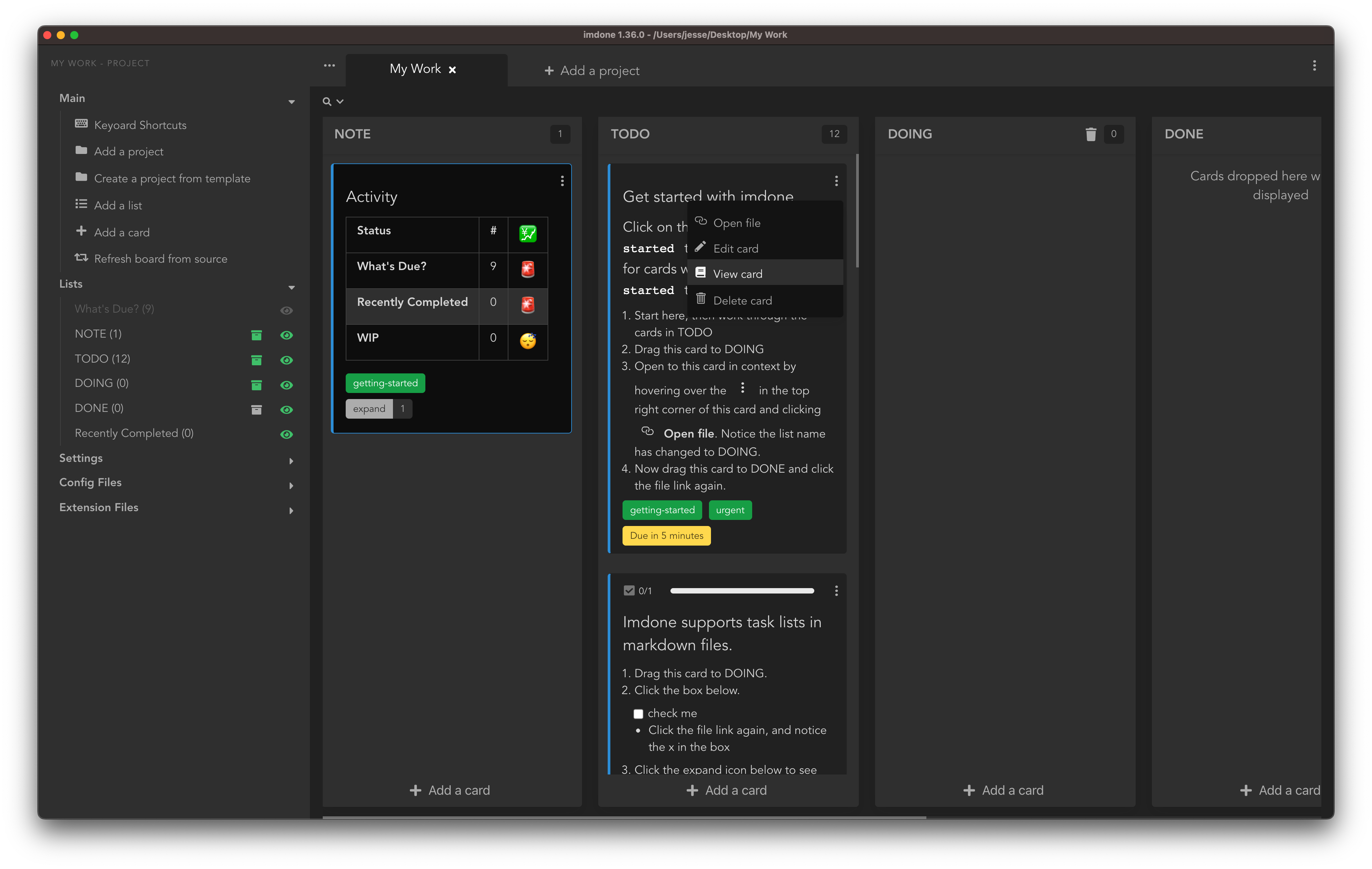
Hiding lists
To hide a list, click on the Lists menu and click the eyeball icon next to the list you would like to hide.
Ignoring Lists
To ignore a list, click on the Lists menu and click the sun icon next to the list you would like to ignore.
- The TODO comment will remain in the code if it’s in an ignored list.
Temporarily showing hidden lists
To temporarily show hidden lists press A (shift+a). When all lists are shown use arrow keys or hjkl to move the selected card.
Deleting lists
Lists can be deleted from your project if there are no comments with the list token left in your files by clicking on the trash can icon nest to the list name/token.
If a list is deleted, imdone will still recognize new comments added with that list token.
Filtered Lists
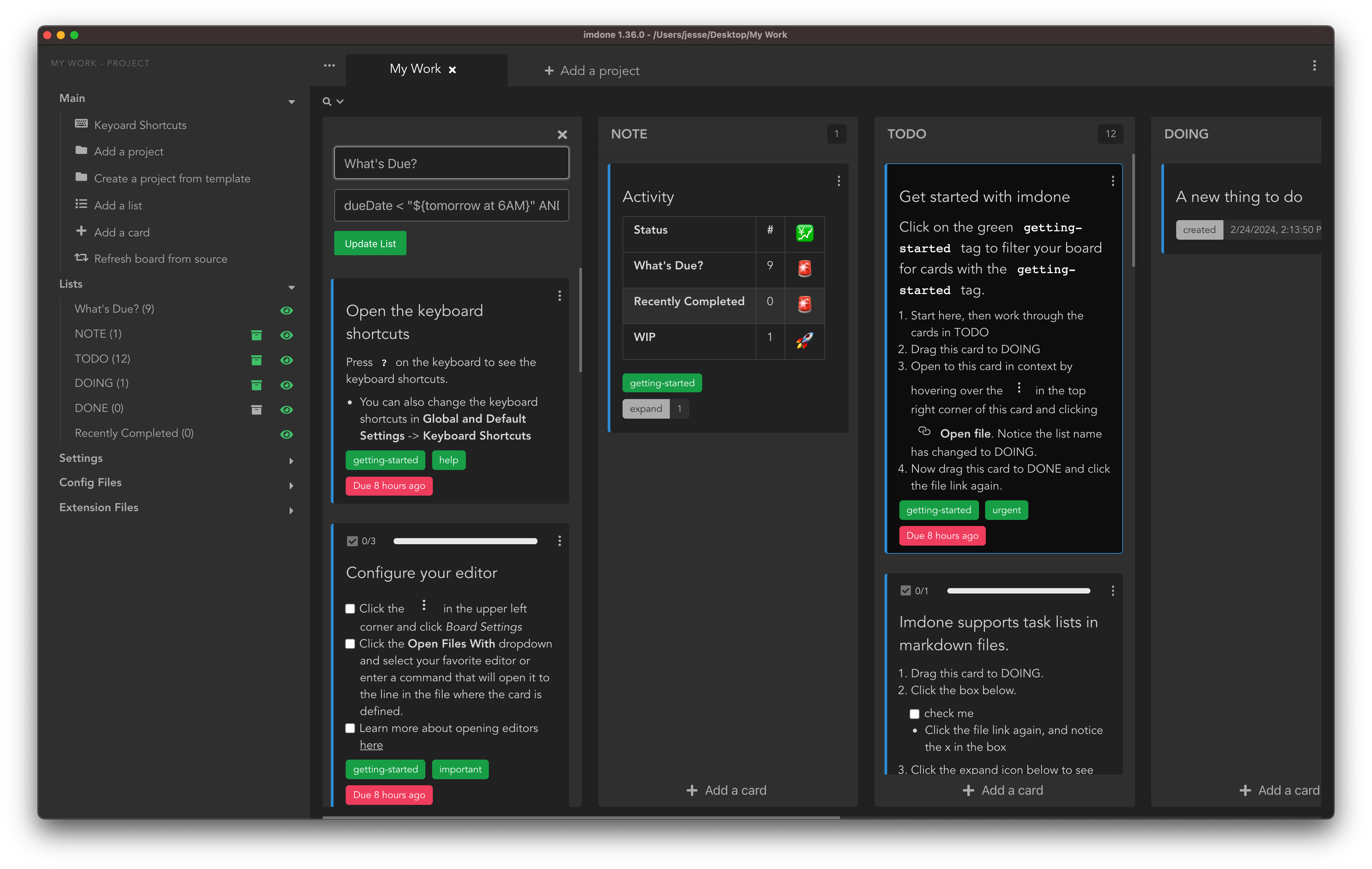
Filtered lists are lists of cards that result from a filter. You can create a filtered list by filtering your project board and clicking the “Add a filtered list”.
A good example of a filtered list is one that has a name like “Due Today” or “What’s Due?” and a filter like dueDate < "${tomorrow at 6AM}" AND list != DONE +due +order
- Only cards matching the configured filter will appear in your filtered lists.
- Cards can’t be manually prioritized in the list, but they can be sorted by applying a sort to your query.
- You can use any attribute of the task object as a sort operator and plain language for dates/times in ${}.
- For example:
dueDate < "${tomorrow at 6AM}" AND list != DONE +due +order