imdone-cli docs
Workbench guide
Use the native Workbench board to manage stories, provider sync, and concurrent AI sessions.
Come back to a story with its files, decisions, and AI conversation close at hand. Workbench gives you a board and a place to read, edit, and work on each story without hunting through separate windows.
A story here is your Jira or GitHub issue. Workbench and the CLI use the same local Markdown files; you choose when to publish updates back to Jira or GitHub.
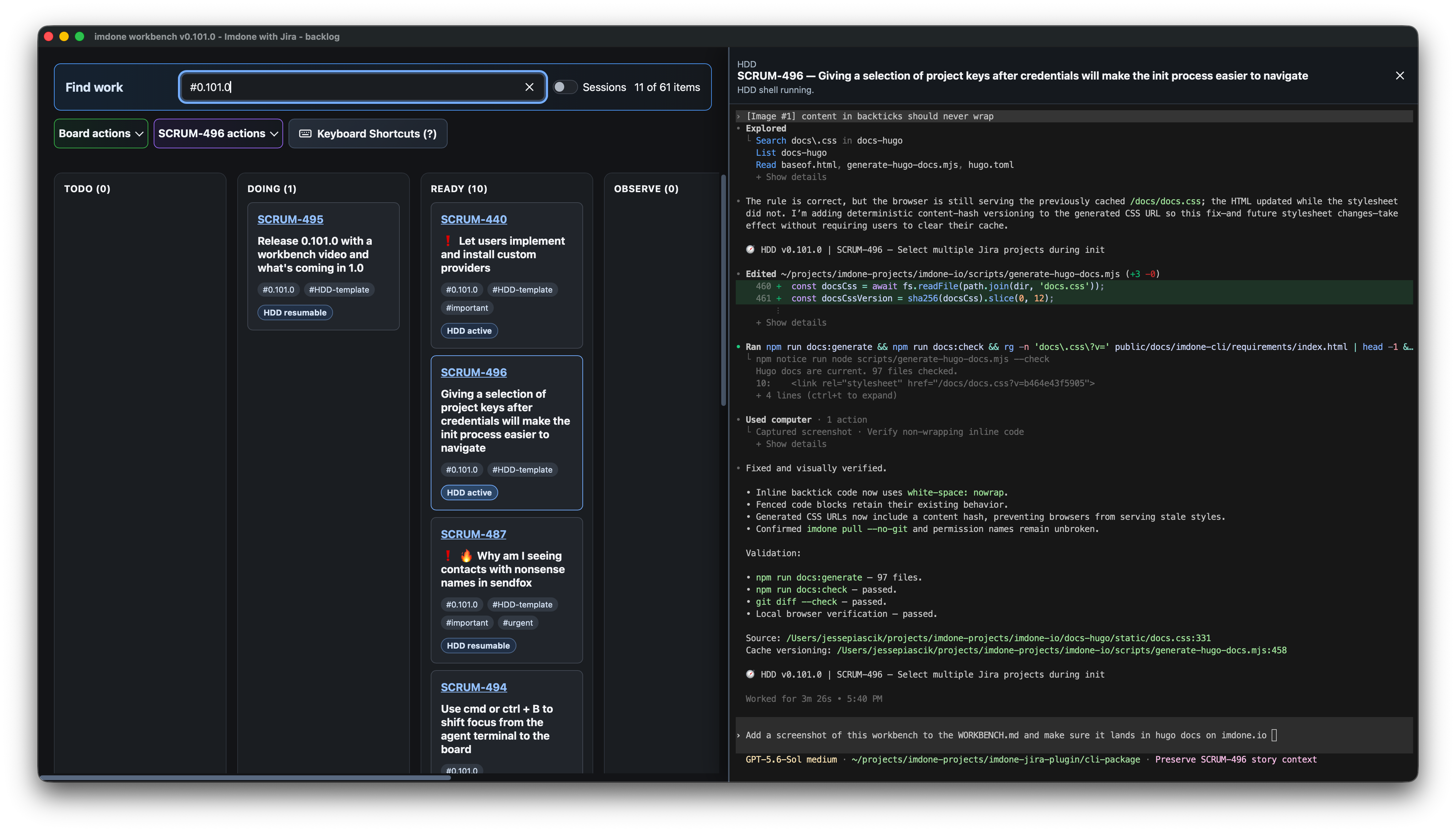
Open your project
If you’re new to imdone, follow Get Started to install it and connect your project to Jira or GitHub. Already have a configured project? Open a terminal in that project and run:
imdone workbench
imdone work is the shorter alias. Once the board is ready, the command returns control to your terminal. You can keep using that terminal or close it while Workbench stays open.
Close the Workbench window to stop its running agent terminals. To hide a story while leaving its agent running, use the story workspace’s X instead.
You can read and edit stories without starting an AI session. To use Agent, have Codex or Claude Code installed and signed in. Imdone uses your configured coding agent; see AI setup and HDD setup for command options, including --setup when you need to choose again.
Try one story
Start with a story you’re already working on.
- Select its card, then choose Open story from the story’s actions menu. Double-clicking the card also opens it.
- In Files, read the story in Preview. Expand attachments to open its notes, screenshots, or plans.
- Choose Edit, add a small note about what to do next, and wait for Saved.
- When you’re ready to share that change, use the selected story’s Push action.
Saved means saved on this machine. Push publishes your local changes to Jira or GitHub. A Needs push badge tells you the story has changes ready to publish. Workbench does not sync automatically.
You’ve now left a next step with the story, where you or a teammate can find it later.
Review and edit story files
Select a file to read it; choose Edit to change Markdown and Preview to read the result. Workbench saves after a short pause in typing. Saving, Saved, or a save error appears beside the filename.
The file tree updates when you or your agent adds files. Folders start collapsed; expand the ones you need. Drag the divider to give long filenames more room, or hover a filename to see its full path.
Images and Mermaid diagrams can be viewed in Files with zoom controls. Local image references also display inside Markdown Preview, including sibling images in a nested folder:

Follow a relative link to open another file from the same story. HTML files offer Open in default browser. Other text files are read-only; large ones show a preview-size notice. See the file reference for supported previews and navigation details.
External changes to an idle Markdown file reload automatically. If you have a pending autosave, your edit can overwrite an external change when it saves. Coordinate edits when someone or an agent is changing the same file. If saving fails, your text stays in the editor; address the displayed error before navigating away.
Work with your AI agent
Open the story’s Agent tab and choose the kind of help you need:
| Choose | Use it when |
|---|---|
| Start AI / Ask AI | You want to ask a question or tackle a task with this story loaded as context. |
| Start HDD / HDD | You want a guided hypothesis-driven development workflow: clarify the problem and intended outcome, plan the work, then gather evidence that it helped. |
For example, start AI and ask: “Read this story and its progress notes. What is the next useful step?”
Switch back to Files to read a plan or inspect an attachment. The agent keeps running. You can work on another story without ending the first story’s session; Workbench keeps one running agent session per story.
Pick up where you left off
A story’s Ask AI active or HDD active badge reopens its running session. After reopening Workbench, Ask AI resumable or HDD resumable means you can restore the saved conversation with the supported native agent.
| Action | What happens |
|---|---|
| Close the story workspace with X | Hides Files and Agent; the running session continues. Pending edits must save first. |
| Select an active session badge | Returns to that story’s running conversation. |
| Select a resumable session badge | Starts a terminal and restores the saved conversation. |
| Stop | Ends that story’s agent session and removes its saved local resume record. |
| Close the Workbench window | Stops the window’s running agent terminals. Saved supported conversations remain resumable. |
Saved sessions stay on this machine. They don’t move to another computer through Jira or GitHub. Restoring a conversation does not restore the old terminal scrollback.
After reopening a session, you may see Did this reopen the session you expected? Use it to report whether the right conversation returned. More detail: sessions and resuming.
Find and organize your work
In Find work, start with a word or phrase from the story. Type # to choose a tag, or click a tag on a card. Turn on Sessions to show stories with active or resumable agent sessions.
To return to the default board, use the X inside Find work; it clears the search, tag, and Sessions filter. If you still can’t find a story, check your project’s configured board filter.
For more precise searches, try tags=bug AND list=DOING. The filter reference has more examples.
Drag a card to another column to move it, or within its column to reorder it. Arrow keys select cards; Shift + Arrow moves them. If a search or project filter specifies a sort order, remove its sort terms before manually reordering cards within a column.
Add a story
Choose Board actions → Add story. The three steps are Story, Provider details, and Review & create.
Enter a title, choose a template and tags, then review the Jira or GitHub details before creating. Workbench remembers reusable choices for next time. If creation only partly succeeds, follow its recovery guidance rather than creating the same issue again.
Reorder columns
Drag the six-dot grip beside a column heading. You can also focus the grip and press Shift+Left or Shift+Right. Press Escape to cancel a pointer drag.
Column order is shared with your project, so this changes your team’s board configuration, not just your own window. See column controls for details.
Share updates with Jira or GitHub
Use the selected story’s actions menu for Push or Pull:
| Action | Use it to |
|---|---|
| Push the selected story | Publish that story’s local changes. |
| Pull the selected story | Bring its latest Jira or GitHub updates into your local files. |
| Board actions → Push all / Pull all | Sync the whole configured work set. |
| Board actions → Check pull status | Check whether newer updates are available and see the time of the last check. |
Workbench runs one sync operation at a time. Push is disabled when there are no changes to publish.
The Activity feed shows progress and the result. You can hide and reopen it while continuing to use the board. Dismissing a running entry does not cancel the sync.
A few useful shortcuts
Use Cmd on macOS and Ctrl on Windows or Linux. The Keyboard Shortcuts (?) button and action menus show the bindings for your platform.
| Shortcut | Use it to |
|---|---|
| Cmd/Ctrl+F | Focus Find work. |
| Cmd/Ctrl+O | Open the selected story in Preview. In the Markdown editor, switch to Preview. In the file tree, open the selected file in VS Code. |
| Cmd/Ctrl+E | Edit the selected story’s issue Markdown. |
| Cmd/Ctrl+B | Return from Files or Agent to that story’s board card. |
| Cmd/Ctrl+Plus / Minus | Make the whole Workbench larger or smaller. |
| Cmd/Ctrl+0 | Reset Workbench zoom. |
Shortcuts can depend on which part of Workbench has focus. Use the complete shortcut reference for all bindings and the Files/Agent variations.
When something goes wrong
| What you’re seeing | What to try |
|---|---|
| My story is missing | Clear Find work and Sessions, then check the project’s board filter. A newly created story may be outside the current filter. |
| My edit isn’t in Jira or GitHub | Wait for Saved, then use that story’s Push action. Check Activity for the result. |
| Saving failed | Keep your draft open and follow the displayed error. If the file or folder was removed, Workbench won’t recreate it through autosave. |
| Sync failed or timed out | Read Activity’s recovery guidance. Use its copyable CLI command for the full diagnostic, and resolve any reported conflicts before retrying. |
| My AI session didn’t return | Check whether you chose the intended story and coding agent. Stop removes the local resume record; a different machine won’t have it. Send feedback if a saved conversation still won’t reopen. |
| Workbench won’t open | Check the terminal error and contact support with the imdone version, platform, and error message. Remove any credentials before sharing output. |
For sync limits, conflict commands, and diagnostic details, see sync recovery.
Privacy and feedback
Local reading and editing use your project’s files. Creating stories, syncing, and teammate suggestions contact Jira or GitHub. AI sessions run through your configured agent and its own access settings.
Usage measurements exclude story content, terminal input/output, credentials, and paths. Feedback sends the message you submit and an optional reply email. See technical boundaries for details.
If something gets in your way, choose Board actions → Send feedback. Tell us what you were trying to do and what happened; leave an email if you’d like a reply. If submission fails, your message stays available to retry.
You can also ask in Discord or email support@imdone.io.
For the full controls, file behavior, and technical detail, keep the Workbench Reference handy.